Capabilities

What I can build for your business, in detail.

Most businesses run on a website, a few admin tools, some inboxes and a spreadsheet, and nothing connects them. I build those pieces as one system: a public website, a private workspace for your team, a portal for your clients and, where it helps, a native app. They read and write the same records, so when your team updates something once, everywhere that shows it stays in step.

You don’t need every piece. Start with the tools your business needs now, and add others as it grows.

How the pieces connect

Four surfaces sit on one shared layer.

  • WebsiteWhat your customers see. Pages, a shop, forms and booking.
  • WorkspaceWhat your team uses. Inquiries, clients, projects, products, money.
  • Client portalWhat each client sees about their own work.
  • AppsPurpose-built tools for work away from a desk.

Records and filesClients, projects, products, orders, messages, files.

Connected services

  • Payments
  • Shopify
  • Calendars
  • Email
  • Transcription
The website, workspace, portal and apps are separate surfaces with separate access. Underneath, they share one set of records. Your clients see only what you’ve chosen to share.

Chapter 1: Your public presence

1. Websites you can edit yourself

A website designed around your business, with a visual editor so you or your team can change it without waiting on a developer. It’s made for the owner, or whoever looks after marketing.

  • Edit section by section. Each page is made of sections: a hero, a product row, an editorial block, a contact panel. Select one and edit its words, images, video, colours, sizes, alignment and button links.
  • Arrange and add. Add a new section from the ones your site supports, reorder sections, or remove one, while a preview updates beside you.
  • Draft, preview, publish. Changes are saved as a draft. You preview the real page with your draft in place, and the public site only changes when you publish.
  • Check every screen size. Switch the preview between phone, tablet, desktop and wide screens. Some settings, like type size and position, can differ by screen.
  • Business details in one place. Hours, phone, address and social links are stored once and used wherever the site shows them.
  • Forms that go somewhere. Contact and inquiry forms land in your workspace inbox, not in an email nobody owns.
  1. Hero
  2. BannerNew
  3. Bestsellers
  4. Contact panel

Draft saved. The public site hasn’t changed.

Fictional example

A florist wants a Mother’s Day banner on the homepage. Their manager adds a banner section above the bestsellers, swaps in a photo, checks it on a phone-sized preview, spots that the headline wraps badly, shortens it, and publishes.

The editor connects to product data from the shop, events, and the inquiry inbox in the workspace.

How much control the editor gives you is a choice we make together. Some sites need text and image editing only; others need full section arranging.
2. Selling online

A store that looks like your brand and fits how you actually sell. Your customers buy from it; your team manages products and orders behind it. I build it one of two ways and recommend one after I understand your products and the tools you already use.

Approach A

A custom storefront on Shopify

Shopify keeps your products, stock and checkout. I build the storefront your customers see and a catalog manager inside your workspace. Good when you already use Shopify or want its checkout and app ecosystem.

Approach B

A fully custom shop

Your own catalog, cart and Stripe checkout, with orders landing in a queue for your team. Good when your products, options or fulfilment don’t fit a standard store.

  • Catalog and collections. Create and edit products and collections. Search for products to add to a collection, reorder them, or take them out.
  • Variants, stock and pricing. Each product can have sizes, colours or other options, each with its own price, stock and availability. Products can be published or kept hidden.
  • Image handling. Uploaded photos are resized, stripped of hidden camera data and converted to a web-friendly format, so your team doesn’t prepare images by hand.
  • Swatches. Each colour option can show a swatch, so customers see the colour, not just its name.
  • Related products and merchandising. Link products as colourways, size runs or “shop the look” groups. The link works both ways, so each product shows the others.
  • Checkout and fulfilment. Shopify checkout on the first approach. On the custom route, Stripe checkout, an order queue, refunds from the admin, and delivery priced by shipping zone or by distance for local drop-off.

Fictional example

A knitwear brand launches a sweater in four colours. The owner uploads photos straight from a phone, sets a swatch for each colour, links the matching scarf as “shop the look”, and publishes. Customers on the scarf page now see the sweater too.

The shop connects to the website editor (product rows and collection pages), moodboards (linked product references), and financial summaries.

Chapter 2: Running the work

3. Project pipelines and workspaces

A private workspace where each job moves through clear stages, and everything about that job sits on one screen. Owners and staff use it, each with access that fits their role.

  • Stages that match your work. I set the stages to your process. For a bespoke maker that might run from inquiry through consultation, agreement, deposit, design, fittings and delivery. A renovation firm or an event planner would have their own.
  • Checks before moving on. A job can’t skip ahead when something required is missing, such as a deposit before work starts. The workspace explains what’s blocking it.
  • Status and history. Each stage change is recorded with the date and the person who made it, so you can see how a job got where it is.
  • Everything in one place. The client, what’s been paid and what’s owed, the conversation, files and designs sit together on the job’s own page.
  • Approvals and changes. Designs can be drafted, shown to the client, and marked approved or sent back with feedback. Change requests are logged against the job.
  • Roles. An owner sees everything. Staff, and outside partners if you work with them, see only the parts their role needs.
Kitchen jobBlocked at Deposit
  1. Inquiry (done)
  2. Consultation (done)
  3. Agreement (done)
  4. Deposit (current stage, blocked)
  5. Design (not started)
  6. Delivery (not started)

Can’t move to Design yet. The deposit invoice is still unpaid.

Illustration only. No payment is taken.
Client
Client record
Deposit invoice
Unpaid
Stage history
Reached Deposit on day one

Fictional example

A cabinet maker’s kitchen job is waiting at “Deposit”. The project manager opens it, sees on the same screen that the deposit invoice is still unpaid, and moves on. When the payment lands the next day, the job can move to “Design”.

Atelier, the studio workspace I built for Mabel Brempong, runs bespoke commissions this way, with stage checks, dated stage history, fittings and design approvals.

Pipelines connect to clients, payments, conversations, the planning board and the client portal.

4. Visual planning boards

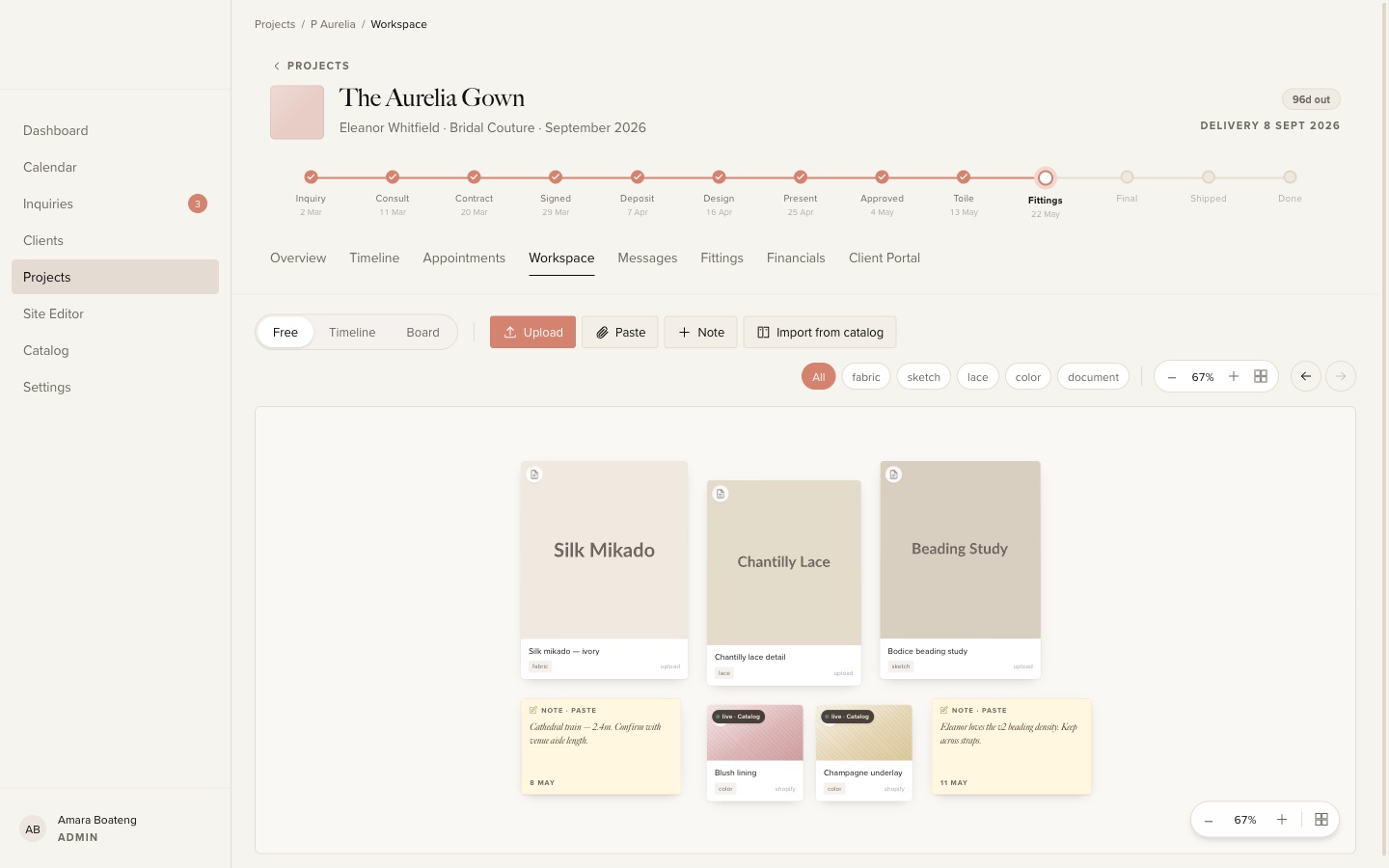
A board for each project where your team gathers the materials behind it: photos, sketches, documents, links and notes, arranged however helps you think. It’s for designers and makers, and anyone who plans visually.

  • Free canvas. Drop items anywhere, move them around, zoom in to compare details and pan across the board. Undo is there when you need it.
  • Three views of the same board. The free canvas for arranging, a tidy grid to scan everything at once, and a timeline that pins each item to the project stage it belongs to.
  • Many kinds of item. Upload or paste images and files, add links (with a preview), and write notes.
  • Tags and filters. Tag items, for example by material, sketch or colour, then filter to see only what you need.
  • Linked products. Place a product from your catalog on the board as a reference. It can show the product reference and price alongside your other materials.
Dress board · six items

Free canvas: items placed anywhere. Switch views; every item keeps its place in each one. Free canvas view: three lace photos, a pencil sketch, a catalog fabric and a note on sleeve length.

Fictional example

A bridal designer builds a board for a client’s dress: three lace photos, a pencil sketch, the fabric from the catalog and a note on sleeve length. Before the fitting they switch to timeline view to see which items belong to the design stage.

Atelier gives each Mabel Brempong commission its own board with free, grid and timeline views.

Boards connect to project stages, the product catalog and recording excerpts (see 8).

5. Clients, booking and intake

A client record that builds up over time, plus the forms and calendar that bring new work in, used by whoever answers inquiries and books appointments.

  • Client histories. Each client has one record with their projects, messages, payments and notes, plus tags and flags like VIP.
  • Inquiry inbox. Website inquiries arrive in one inbox, with a clear “handled” state so nothing sits unanswered.
  • Booking and intake forms. Customers book a consultation on your website. You choose the questions the booking form asks from the workspace settings.
  • Calendars. Appointments sync with Google Calendar, and the website offers only times that are actually free.
  • From inquiry to work. Convert an inquiry into a consultation. Further handoffs into client and project records can be scoped around your process.

Fictional example

A family photographer gets an inquiry about a spring session. They convert it into a consultation and keep the submitted details with the booking. After the call, the team has the information it needs to plan the work.

Booking and intake connect to the website forms, project pipelines and the client portal invitation.

6. Client portals

A private website where each client sees their own work, and only what you choose to share. Your clients use it; your team decides what reaches it.

  • Private sign-in. Each client signs in with their email and sees only their own projects.
  • Progress and updates. Their work, its story and your updates appear on one continuous page, with milestones showing where things stand.
  • Agreements. Clients see their agreements and whether each one has been signed.
  • Payments. Clients see their payment plan and the status of each instalment.

A deliberate boundary

Internal notes, costs and team discussion stay in the workspace. The portal only shows content that’s been marked for sharing.

Fictional example

A landscape designer’s client wonders whether planting has started. Instead of emailing, they sign in, see this week’s photo update and that the second instalment is due on the 15th.

Mabel Brempong’s clients have a private website for their commissions.

What clients can do in the portal, beyond seeing their information, is scoped per project.

Chapter 3: Communication and knowledge

7. Conversations and translation

Conversations attached to the work they’re about, readable in each person’s own language, for your team and the partners you work with.

  • Threads on the work. Conversations live on the project, or on a single item on the planning board, so the context is right there.
  • Replies and reactions. Reply to a specific message so the context travels with it, or react to it instead of writing “ok”.
  • Each reader’s language. Every person reads the whole thread in the language they choose. The original wording is one tap away.
  • Translation that’s remembered. Each message is translated once per language and saved, so scrolling back doesn’t wait on it again.
Project thread

Reading as the designer, in English.

  1. Designer · Texas
    Revised drawing attached. Can we lower the chair back slightly?
    Written in English
  2. Workshop lead · Portugal
    Replying to Designer: Revised drawing attached. Can we lower the chair back slightly?Yes, that’s possible. I’ll send a sample this week.
    Translated from PortugueseDesigner reacted

Fictional example

A furniture brand in Texas works with a workshop in Portugal. The designer writes in English; the workshop lead reads and replies in Portuguese. Each sees the whole thread in their own language, and either can check the original wording.

Atelier’s project conversations translate automatically, with a toggle back to the original.

Conversations connect to projects, planning boards and notifications.

8. Recordings and business search

Two related but separate tools.

Consultation recordings

A native app that records consultations with consent, keeps a local copy during upload, and provides a transcript you can search.

  • Consent first. The app plays a spoken announcement and asks the person recording to confirm consent before capture starts. The confirmation is saved with the recording.
  • Phone or Mac. Record on an iPhone, iPad or Mac, filing the recording to a client and project.
  • Kept until delivered. Audio is saved on the device first and kept until the upload is confirmed. Interrupted recordings and stopped uploads are still there after a restart.
  • Transcripts. Recordings become transcripts with speaker labels. Search inside a transcript and jump to the moment something was said.
  • Reviewed excerpts. A team member can pick exact quotes from a transcript to use in other places, such as a planning board.
  1. A spoken announcement plays, and the person recording confirms consent
  2. Recording is saved on the device first
  3. The local copy stays until the upload is confirmed
  4. Transcript with speaker labels, ready to search

Search across your records

Search that finds records by meaning, not exact words.

  • Type the way a client would describe something and get matching records back, with the field that matched shown.
  • It covers the record types and fields we choose together, such as projects, clients or inquiries. It’s not a search of every file you own.
Search records

Illustration with one fixed sample query. Not a live search.

Sample queryworried about rain for the outdoor ceremony
1 matching record
Client recordMatched field: Note

“concerned about weather on the lawn”

Fictional example

A wedding venue coordinator searches “worried about rain for the outdoor ceremony” and finds a client note that says “concerned about weather on the lawn”, without requiring the same wording.

Mabel Brempong’s studio records consultations with a native iPhone and Mac app I built, and searches its records by meaning in Atelier.

Recording apps are native builds scoped per project.

9. Payments and financial summaries

Deposits, instalments and invoices tied to the work, and summaries built from the same records, for owners and staff who handle billing.

  • Payment plans. Split a job into a deposit and instalments, each with its own due date and status, and send each one through Stripe.
  • Invoices and balances. See each invoice and its payment status, and what’s still owed on each job.
  • Monthly summaries. Money in and money out by month, with this year next to last.
  • Production and stock. A report comparing what’s been made with what’s in stock. A missing figure shows as unknown, not as zero.
  • Export. Download summaries as a CSV file for your spreadsheet or bookkeeper.
March summary · sample studioExports as CSV
Fictional example: a sample studio’s March summary
Money in$18,400
Money out$6,250
Refunds$300
Net cash movement$11,850Not profit, and not a balance
Invoices still owed3

Fictional example

A sample studio’s March summary.

These are summaries of what your system records. Your bookkeeper or accountant can use the exports alongside their own checks.

10. AI assistance with a person in charge

AI that handles first drafts and sorting, with a person making the decisions.

  • Sorting inquiries. New website inquiries are categorised and summarised, with a suggested reply your team can edit or ignore. Nothing is sent automatically.
  • Translation. Messages are translated for each reader, with the original always available (see 7).
  • Transcripts. Speech is turned into text with speaker labels (see 8).
  • Reviewed excerpts. Quotes from transcripts are picked and checked by a person before they’re used anywhere else.

Fictional example

A bakery gets twelve inquiries over a weekend. On Monday they’re sorted into wedding cakes, wholesale and general questions, each with a two-line summary. The owner answers the wedding cakes first, editing the suggested replies.

I decide with you where AI helps and where a person must review. Suggested replies stay drafts until your team chooses to send them.

Chapter 4: Connecting it all

11. Apps, APIs and integrations

The layer that lets the website, workspace, portal and apps share records, plus the services they connect to.

  • Shared records with role boundaries. Everything reads from one set of records. Access rules decide who can see or change what: a client, a staff member, an owner.
  • Native apps for a purpose. When a job happens away from a browser, I design and build an app for it, like the recorder in section 8. There’s no ready-made app I drop in.
  • Connected services. Payments (Stripe), Shopify, Google Calendar, email sending and marketing lists, AI services and transcription.
  • Other screens. Apps for other platforms, like a TV display or a kiosk, are possible as custom work and scoped from scratch.

Fictional example

A gym’s front desk app checks members in. The same records feed the website’s class timetable and the owner’s monthly summary.

Mabel Brempong’s system connects Shopify, Stripe, Google Calendar, email and transcription to one workspace, with a native recorder on iPhone and Mac.

12. Options for your kind of business

Pieces shaped for specific industries. I’ve built these as options in my site engine. Each is set up and tested for your business before it goes live.

Apparel

Sizes and colours as true variants, each with its own stock, swatch and price.

Food

Menus with portions and modifier groups (“add an egg”, “oat milk”), service hours that decide when items can be ordered, and delivery priced by distance.

Materials

Products sold by dimensions instead of each, with a picker that quotes a price as the customer enters length and width.

Calls and support

I’ve also built modules for business phone calls and text messages, and for customer support. These need separate setup and rollout checks for your business; they are not included automatically.

Fictional example

A lumber yard sells walnut boards. A customer chooses thickness, width and length, sees the price update as they go, and orders for local delivery.

Built, not imagined

One couture house, four connected surfaces.

For Mabel Brempong I built the public shop on Shopify, Atelier (the studio workspace), a private client website and a native recording app. They share the same records, so a consultation, a commission and a client’s story stay connected.

A planning board in Atelier, the studio workspace I built for Mabel Brempong
Shown with sample content.

You don’t need all of this.

Most businesses start with the piece that hurts most: a site they can’t edit, an inbox that loses inquiries, or clients asking “where are we at?”. I build that first, on records the next piece can use.